Views: 0 Author: Site Editor Publish Time: 2026-01-26 Origin: Site
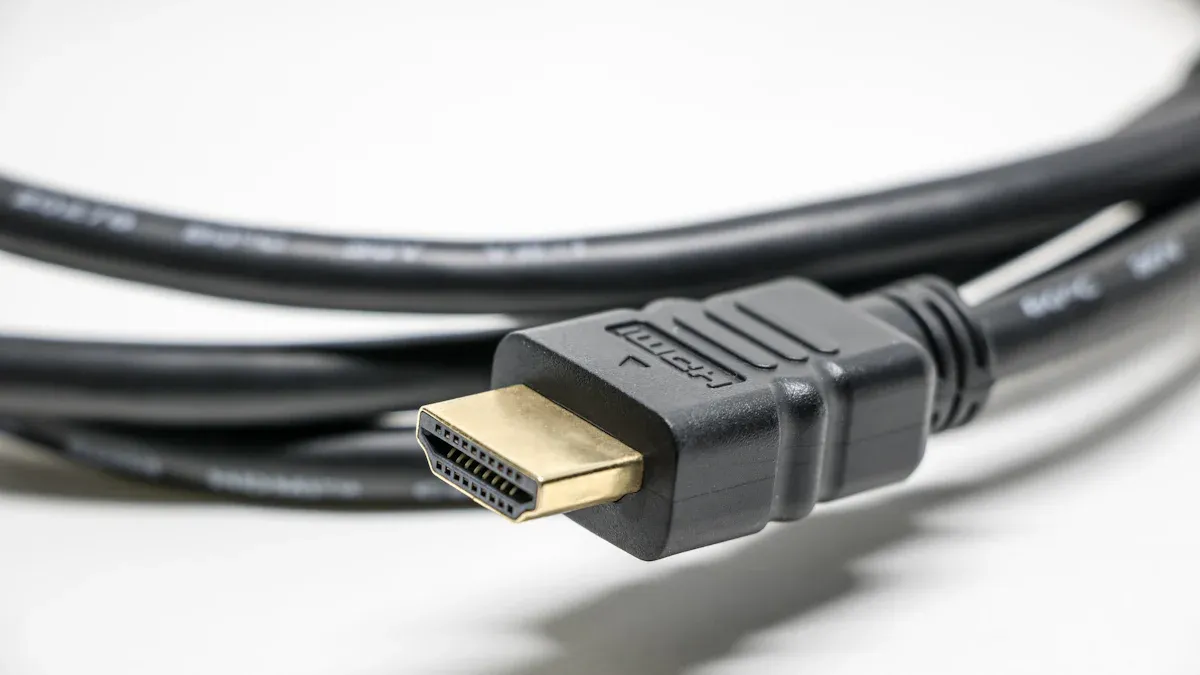
Do HDMI Extenders Reduce Data Quality? You may worry about losing sound or picture when using an HDMI extender. Usually, HDMI extenders keep your signal good if you pick the right one and set it up correctly. Problems can happen if you use bad HDMI cables, make HDMI cables too long, or place them close to devices that create electrical noise. Twisting or bending your HDMI cable can also cause trouble. You can prevent these issues by being careful with your setup.
Pick the correct HDMI extender for your setup. This helps keep video and sound clear. - Use good, shielded HDMI cables to stop signal problems. This makes sure audio and video stay clear. - Keep HDMI extenders far from electrical devices. This stops signal loss and keeps data quality high. - Measure the space between devices before you set up. This helps you pick the best extender for your needs. - Read reviews and check specs to make sure your HDMI extender works well and fits your devices.
HDMI cables send high-quality video and sound between devices. The HDMI signal is digital, using ones and zeros to move information. This keeps the picture and sound clear. But when you use a long HDMI cable, the signal can get weaker. If it gets too weak, you might lose quality or even lose the connection. Most HDMI cables can send 1080p video up to 65 feet before problems start. For 4K video, the distance is about 16 feet. After these lengths, the picture may look blurry or break up. You need something to keep the signal strong and steady.
An HDMI extender lets you send signals farther than a normal cable. You might use one if your TV or projector is far from your media player. The extender changes the HDMI signal so it can travel longer distances. Some extenders use network cables, and some use wireless signals.
HDMI extenders help keep your signal strong over long distances.
They stop signal loss and keep your video and sound clear.
You can use them to avoid problems like fuzzy or flickering screens.
Tip: Keep your HDMI extender away from things that make electrical noise. This helps your signal stay strong and smooth.
If you pick the right HDMI extender and set it up well, you can get great video and sound in big rooms. You do not have to worry about losing signal or data if you use the right extender for your setup.
There are two main kinds of HDMI extenders. One is passive, and the other is active. Passive HDMI extenders use normal cables. They do not make the signal stronger. These work best for short distances. If you use them for long runs, the signal can get weak. Active HDMI extenders have special parts inside. These parts boost the signal. You can use them for longer distances. The picture and sound stay good.
Here is a table that shows how passive and active HDMI cables are different:
Feature | Standard HDMI Cable | Active HDMI Cable |
|---|---|---|
Maximum Reliable Distance | ~25 ft | ~75 ft |
Interference Immunity | Low | Medium |
Common Use Case | Connecting devices in a small space. | Home theaters, in-wall runs. |
If you want your signal to stay strong over long distances, pick an active HDMI extender. You will get better data quality and have fewer problems with interference.
You can pick between cable HDMI extenders or wireless HDMI extenders. Each type has good and bad points.
Cable HDMI extenders use wires to send the signal. There is almost no delay. They are great for gaming or fast video.
Wireless HDMI extenders send the signal through the air. You do not need to run wires, which saves time. You do not need WiFi, so you skip internet issues.
But wireless HDMI extenders can have some delay. You might see a lag from 100ms to 500ms. This can be a problem for gaming or computer use. Some wireless HDMI extenders work faster. They can lower the delay to about 80-100ms. These are good for movies and presentations.
Tip: For the best quality and lowest delay, use a cable HDMI extender.
HDBaseT and fiber HDMI extenders help you send signals very far. HDBaseT extenders use network cables. They can send HDMI signals up to 330 feet. You can use them in big rooms or buildings. Fiber HDMI extenders use fiber optic cables. They can send HDMI signals for hundreds of feet. The quality stays almost perfect.
You should use HDBaseT or fiber HDMI extenders if you need your signal to stay strong and clear over long distances. These extenders are great for high-resolution video and audio. You will see sharp pictures and hear clear sound, even in large spaces.
You might ask if HDMI extenders lower data quality when sending signals far. The answer depends on how far you need the signal to go and what video quality you want. HDMI cables work best for short distances. Standard HDMI cables can handle 1080p or 720p video up to 25 feet. If you use a cable that is too long, the signal can get weak. This can make the picture blurry or even cause the connection to stop working.
HDMI extenders help keep the signal strong over longer distances. Good HDMI 2.0 extenders can send 4K video at 60Hz up to 164 feet. You can watch clear movies or play games without losing signal. Most HDMI extenders can send 4K video over 100 feet and still look good. If you pick the right extender, your data quality stays high.
Long HDMI cables can make the signal weaker.
HDMI extenders help the signal go farther.
Good HDMI extenders can send 4K video up to 164 feet.
Note: Always check how far and what video quality your HDMI extender supports before buying. This helps you avoid problems with weak signals or bad data quality.
Can HDMI extenders lower data quality if they are not made well or do not work with your devices? Yes, if you use a cheap extender or one that does not fit your devices. The transmitter inside an HDMI extender changes audio and video signals. Good transmitters keep the signal clear and strong. High-quality HDMI extenders use special ways to stop the signal from getting worse. You get sharp pictures and clear sound.
Bad extenders may not boost the signal enough. You might see weird pictures, hear sound problems, or lose the signal. Cheap extenders can cause these problems, especially if you use them for long distances.
It is also important that your extender works with your devices. Sometimes, HDMI extenders have trouble talking to your TV or player. You might see a black screen, hear sound but see no picture, or get video that does not work right. These problems happen when the extender cannot connect well with your devices. You can fix many problems by checking cable length, changing device settings, or using a converter for old equipment.
Problem Type | Common Symptoms | Solutions |
|---|---|---|
Handshake Issues | Black screen, audio only | Check cable length, update settings |
Infrastructure Issues | Picture/audio drop, no picture | Use correct cables, check input, update software |
Settings Issues | No 4K60, HDR, or Atmos | Set devices to correct mode, adjust output |
Tip: Pick a good HDMI extender and make sure it works with your devices. This helps keep your signal strong and your data quality high.
Can HDMI extenders lower data quality because of interference? Interference can cause problems for HDMI extenders in homes and offices. High-voltage power lines and big electronic devices can mess up your HDMI signal. If you have lots of cables or a big setup, interference can get worse.
Interference can make your video and sound not match up. You might see blank screens or lose the picture. These problems happen when outside electrical noise mixes with the HDMI signal. You can lower interference by keeping HDMI cables and extenders away from power lines and big electronics.
Keep HDMI cables away from power lines.
Do not put HDMI extenders near big electronic devices.
Keep your cables neat to help stop interference.
Callout: If your video flickers or sound drops out, check for things that might cause interference near your HDMI extender. Moving cables or devices can help fix the signal and keep your data quality good.
Do HDMI extenders lower data quality? If you pick the right extender, make sure it fits your devices, and keep away from interference, your signal stays strong. You get clear video and sound without losing data.
You want the best picture and sound for your setup. Start by measuring the distance between your source and display. Add a little extra length for slack. If you need to send 4K video over 50 feet, fiber works best. Check the HDMI version, resolution, refresh rate, and audio output of your devices. Match these with the extender’s features. Decide if you need a simple cable or a transmitter-receiver pair for more screens. Look for support for HDR, eARC, and low latency if you want top quality. Make sure the extender works with your brand of TV or player. Stay away from products with unclear specs or no-name brands.
Tip: Read user reviews and expert ratings. Many people say a good HDMI extender gives sharp video and clear sound, even over long distances.
You can get the most out of your HDMI extender by following a few steps. Measure the distance between your devices before you start. Use high-quality, shielded HDMI cables to reduce interference. If you use a wireless extender, place it in an open area with no walls or big objects in the way. After you set up everything, test your system. Watch for smooth video and listen for clear audio. If you see problems, try moving the wireless extender or upgrading your cables.
Step | What to Do |
|---|---|
Measure Distance | Check length from source to display |
Use Good Cables | Pick shielded HDMI cables |
Test Setup | Watch and listen for issues |
You can avoid many problems by watching out for common mistakes. Do not use cables that are too long or too short. Always check the power supply for your extender. Make sure you use good quality HDMI cables at both ends. If you use Cat cables, make sure the ends are finished well. Poor connections can hurt your signal and data quality.
Callout: A little care during setup helps your HDMI extender deliver the best performance for your home or office.
You can get great sound and picture if you pick the right hdmi extender. Experts say you should do a few things for the best results:
Figure out how far you need your signal to go.
Think about what picture quality and speed you want.
Choose the best way to send your signal.
Look for extra features and ways to connect.
Compare different brands and read what people say.
Many people say their hdmi extender works 25% better after using these tips. You will have fewer problems with your signal and your hdmi setup will work better in more rooms.
Myth | Reality |
|---|---|
hdmi extenders are only for professional AV setups. | You can use them at home, at work, or in factories. |
Wireless hdmi extenders are unreliable. | New wireless hdmi is much more stable now. |
Higher resolution always costs more. | High-resolution hdmi extenders are cheaper now. |
hdmi extenders are a one-time purchase. | You should check for updates and make sure they work with your devices. |
All hdmi extenders are the same. | Features and quality are different, so check the details. |
Make sure your hdmi extender works with your devices and follow these tips. With the right hdmi extender, you can get a strong and clear signal almost anywhere.
You can use more than one HDMI extender, but you may lose signal quality. Each extender adds a small delay or risk of interference. For best results, use one high-quality extender for the full distance.
Most modern HDMI extenders support 4K and HDR. You should check the product details before buying. Look for HDMI 2.0 or higher if you want the best video quality.
Wireless HDMI extenders can work through thin walls, but thick walls or metal can block the signal. You get the best results when you place the transmitter and receiver in the same room.
You might see a flickering screen, hear audio dropouts, or lose the picture. If you notice these problems, check your cables and power supply first. Try moving the extender away from other electronics.


