Views: 0 Author: Site Editor Publish Time: 2026-01-23 Origin: Site

An hdmi extender helps you send high-quality sound and video farther than a normal hdmi cable. You need an extender if you want your sound and picture to stay clear over long distances. Regular hdmi cables can only send signals a certain distance before the sound or picture gets worse. Look at the table below to see the longest lengths you should use:
Cable Type | Maximum Length | Resolution |
|---|---|---|
Passive HDMI | 25 feet (7.5m) | Older HDMI |
HDMI for 4K | 3 meters (10ft) | 4K |
If you want to learn What You Need to Know About HDMI Extenders, knowing these limits helps you know when to use an hdmi extender.
HDMI extenders send clear video and sound far away. They help fix weak signals and bad picture quality.
Pick the right HDMI extender for your needs. Wired types like Ethernet and fiber optic work for long distances. They also give high quality. Wireless extenders are more flexible.
Always check how far the extender can send signals. Also, check what picture quality it supports. Make sure it fits your setup.
Setting up is easy. First, measure the distance. Then, use good cables. Test your system to see if video and sound are clear.
Think about how you will use the HDMI extender. You might use it for home theater, gaming, or work. Pick the best one for what you need. This helps you get the best performance.
Sometimes you need to send video and sound far away. Regular HDMI cables cannot keep the signal strong if they are too long. An hdmi extender helps you send video and sound between devices that are far apart. The extender changes how the signal moves so it can go farther without losing quality.
HDMI extenders change the signal so it can travel over other cables or even wirelessly. You might use Ethernet cables, fiber optic cables, or coaxial cables. Some extenders use wireless signals. Each type helps you keep your video and sound clear, even if your devices are in different rooms or buildings.
You should learn about hdmi extenders before you pick one. Extenders work with different data rates. Look at the table below to see common rates for HDMI over Ethernet:
Ethernet Data Rate | Supported Rate |
|---|---|
100Mbps | Standard Rate |
1Gbps | High Rate |
Some extenders use fiber optic cables. These can send signals up to 20 kilometers (about 12.4 miles) and keep the video sharp. Regular HDMI extenders can reach up to 100 meters (about 330 feet), but sometimes the signal gets weaker. Fiber extenders do not lose quality and can support 4K UHD and even 8K video. They also block interference from other electronics.
Tip: Always check how far and what resolution your extender supports before you buy it.
Long HDMI cables can cause problems. The signal can get weak, and you might see flickering, black screens, or strange colors. Sometimes, your devices cannot show full HD or 4K video because the cable is too long. An hdmi extender fixes these problems and keeps your video and sound clear.
Here are reasons you might need an hdmi extender:
You want a home theater and keep your equipment in another room.
You need to connect gaming consoles or VR setups far from your screen.
You work in a business and show presentations or signs in big rooms.
You use video security systems and send HD footage to a monitor far away.
You need to broadcast lectures in schools or training centers to many classrooms.
You work in healthcare and send medical images between rooms.
HDMI extenders help you solve these problems. You get strong video and sound, even over long distances. You also avoid flickering screens or lower resolutions.
You should think about cost. Standard HDMI cables cost less, but they cannot go far. Active HDMI cables cost more and reach longer distances. Fiber optic HDMI cables cost the most but give you the best quality and distance.
Feature | Standard HDMI Cable | Active HDMI Cable | Fiber Optic HDMI Cable |
|---|---|---|---|
Cost | Low | Medium | High |
When you know about hdmi extenders, you can pick the right one for your needs. You keep your video and sound sharp, avoid problems, and make your setup work better.
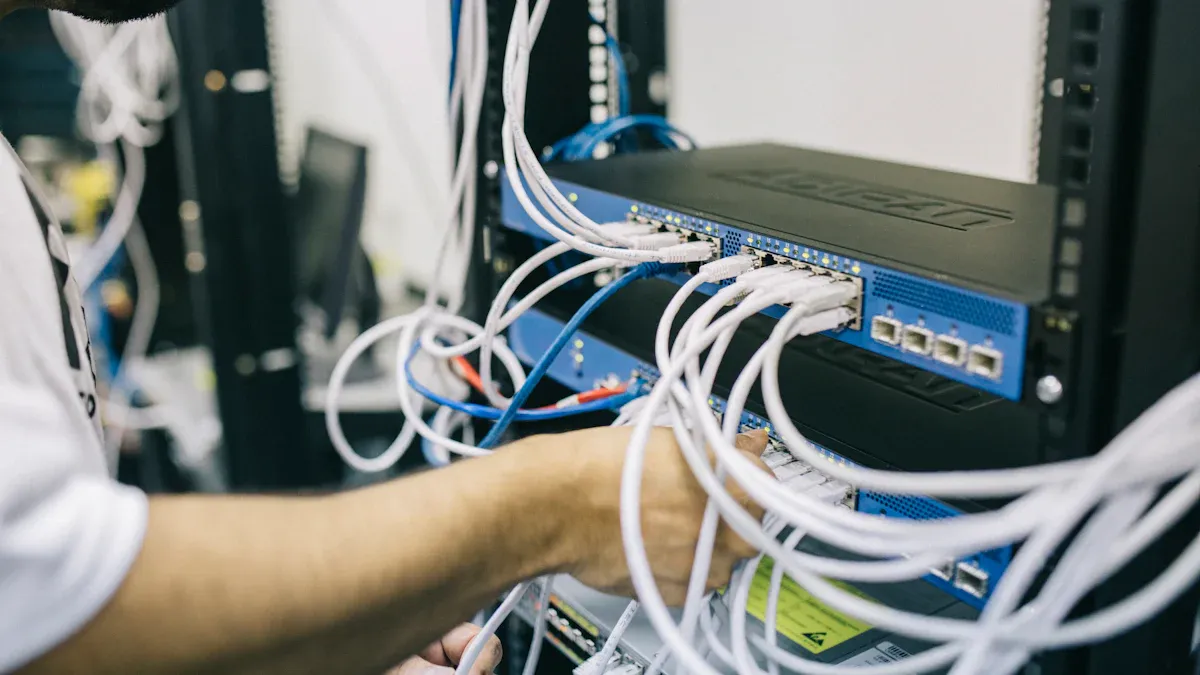
When you use an hdmi extender, it changes how the signal moves. The extender takes the signal from your device, like a Blu-ray player. It gets the signal ready to travel farther. Some extenders use Ethernet cables. Others use fiber optic cables or wireless ways.
A fiber optic hdmi extender turns the signal into light. The light goes through the fiber optic cable. This keeps your video and sound clear, even far away. Fiber optic cables do not get interference from other electronics. Your signal stays strong.
To set up an hdmi extender with cables, follow these steps: First, put your devices where you want them. Next, run the cable between the two spots. Protect the cable if people walk there. Connect the transmitter to your input device and the cable. Attach the receiver to the other end and your output device. Some extenders need power. Check the manual to see if you must plug in the transmitter or receiver.
Most hdmi extenders keep the signal strong. Some might add a small delay. This delay is called latency. It is usually between 0.017 and 0.1 seconds. If you need almost no delay, look for HDBaseT technology.
Note: Fiber optic extenders can send hdmi signals up to 20 kilometers (about 12.4 miles) without losing video quality.
You might wonder if you should use an hdmi extender or an active hdmi cable. Both help you send signals farther than a normal cable. They work in different ways.
An active hdmi cable has special parts inside to boost the signal. It works well for medium distances. But it still cannot go super far. An hdmi extender uses a transmitter and receiver. It sends the signal much farther, often with Ethernet or fiber optic cables.
Here is a table to help you compare the two options:
Feature | HDMI Extenders | Active HDMI Cables |
|---|---|---|
Maximum Range | Over 300ft for 1080p, 100ft for 4K | Up to 100ft for HDMI 2.0, 25ft for HDMI 2.1 |
Supported Resolutions | UHD 4K and 1080p | Limited by cable type and length |
Audio Support | Dolby True HD, DTS-HD Master | Depends on cable type |
Signal Splitting | Yes, can split to multiple displays | No |
Pick an hdmi extender if you need to send signals across big rooms or to other buildings. Extenders can also split the signal to more than one screen. If you only need a short distance, an active hdmi cable may be enough.
Tip: Always check the supported resolution and range before you buy. This helps you get the best video and audio quality for your setup.

There are different wired HDMI extender choices. Each one uses a special cable. Each works best for certain distances.
HDMI over Ethernet (CAT6/7): This type uses network cables. You can send signals up to 300 feet. Many people pick this because CAT6 cables are cheap and easy to get.
Fiber Optic HDMI Extenders: These use fiber optic cables. They send video and sound over 1,000 feet. Fiber optic cables stop interference from other electronics. You get clear video and sound, even in busy places.
Coaxial HDMI Extenders: These use coaxial cables you might already have. They can send signals as far as 300 feet.
Here is a table that shows how far each type can go:
Type of Extender | Distance Capability |
|---|---|
HDMI Over Ethernet (CAT6/7) | Up to 300 feet |
Fiber Optic HDMI Extenders | Over 1,000 feet |
Coaxial HDMI Extenders | Up to 300 feet |
Some wired extenders are simple to set up. For example, HDMI over Gigabit IP extenders are plug-and-play. Others, like 4K kits, need more work and cost more.
Wireless HDMI extenders send signals without cables. Use these if you cannot run wires between rooms. Most wireless HDMI extenders reach over 328 feet. Some can go up to 656 feet if nothing blocks the way.
60 GHz systems work best in open areas. They do not work well through walls.
5 GHz models can send signals 50 meters inside and 200 meters outside. Thick walls or metal doors can block the signal.
Note: Other devices, like Wi-Fi routers or Bluetooth speakers, can cause problems. You might see the video freeze or stop if there is too much interference.
Think about both range and quality when picking an HDMI extender. Wired extenders, like Ethernet and fiber, keep video and sound strong over long distances. Fiber optic cables are best for the longest runs and highest quality. Wireless HDMI extenders give you more freedom but can lose signal if there are obstacles or other electronics nearby.
If you want the best quality, use fiber optic HDMI extenders. For easy setup and lower cost, Ethernet extenders work well for most homes and offices. Wireless HDMI extenders are good when you cannot use cables, but you must keep the path clear for the signal.
When you pick an hdmi extender, think about a few things. First, measure how far your source is from your screen. Some extenders work for short spaces. Others send signals much farther. Pick one that fits your setup to keep video and sound clear.
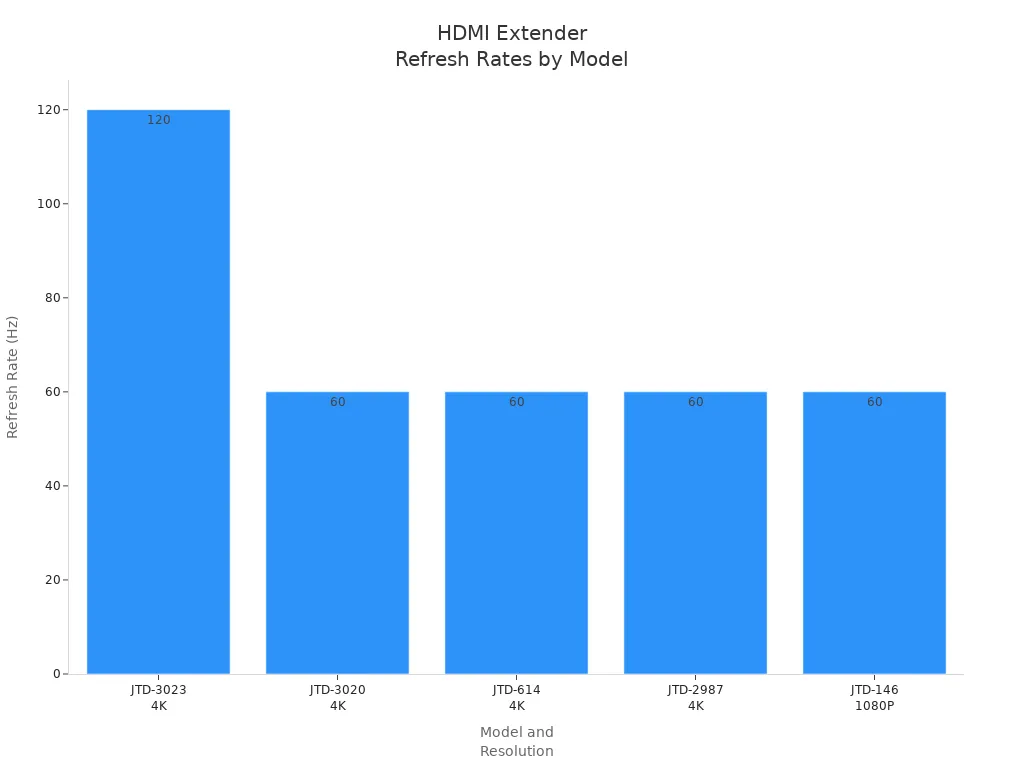
Next, look at the resolution and refresh rate you want. Higher resolutions, like 4K, may not go as far. Some extenders support 4K at 60Hz or even 120Hz. Check the table below to see what each model can do:
HDMI Extender Model | Resolution | Refresh Rate | Additional Features |
|---|---|---|---|
JTD-3023 | 4K | 120Hz | 4:4:4 Chroma, HDR |
JTD-3020 | 4K | 60Hz | Downscaling, PoC |
JTD-614 | 4K | 60Hz | HDR, Dolby Vision |
JTD-2987 | 4K | 60Hz | USB-C Charging |
JTD-146 | 1080P | 60Hz | EDID Copy |
Make sure your extender works with your devices. Some extenders do not support things like HDCP or HDR. If your screen is black or colors look weird, it might not be compatible. Always check what formats and features your extender supports before buying.
Tip: For the best video and sound, pick an extender that matches your needs and works with your devices.
You can make installation simple by following some steps. First, measure the space between your source and display. Choose an extender that covers this distance without losing signal. Use good cables to stop interference and keep video and sound sharp.
If you use a wireless extender, put it in an open spot. Keep it away from walls or metal things that block signals. After you set up your extender, test your system. Make sure your video and sound are clear. If you have problems, move the wireless extender or try better cables.
Here are some easy installation tips:
Measure the space before you begin.
Use shielded cables for wired extenders.
Put wireless extenders away from things that block signals.
Test your setup and fix any problems.
Note: If you see flickering, snow, or missing sound, check your cable length and device settings. Sometimes, updating your device software can fix these problems.
Picking an hdmi extender is easier when you follow these steps. You get strong signals, clear video, and good sound for your system.
An hdmi extender helps you make your home theater look neat. You can put your screen and speakers far from your media player. You do not have to worry about messy wires or losing picture and sound quality. Here are some ways an hdmi extender makes your home theater better:
You send video and sound far without losing quality.
You can put your devices in different rooms for a tidy setup.
You use regular Ethernet cables, so it is easy to install.
Tip: An hdmi extender lets you watch movies and listen to music with great sound and picture, even if your devices are far apart.
If you like gaming or streaming, you want fast video and quick controls. Wired hdmi extenders keep the delay low, so games feel smooth and streams look clear. Wireless extenders are good for casual games, but you might see a small delay. In open spaces, wireless delay is about 80 to 100 ms, which works for most games. Fast games need less delay, so wired extenders are better.
Some hdmi extenders support high refresh rates and low lag. Some models have these features:
4K at 60Hz or 120Hz for smooth games.
HDR and HDCP for bright colors and deep blacks.
Bi-directional IR and EDID toggle for easy control.
HDMI loop-out for watching on a local screen.
Built-in KVM for using your keyboard and mouse from far away.
Note: For the best gaming and streaming, pick an extender that fits your speed and quality needs.
In offices, stores, and security centers, hdmi extenders help you share video and sound over big areas. You can show slides on large screens or send security video to control rooms. Extenders make it easy to watch and manage your systems from one spot.
HDMI extenders let you stream high-quality video for signs in airports, malls, and outside. They also help security teams see live video with no delay. You can control your network video recorder (NVR) from pipeline using USB.
Feature | Description |
|---|---|
Zero Latency | No delay between NVR output and display for real-time monitoring. |
USB Control | Manage NVR remotely with USB input for better security control. |
Tip: Use hdmi extenders to help your business work well and keep your security strong.
HDMI extenders help you send video and sound far away. They keep the signal strong over long distances. If you pick the right extender, your pictures and sound stay clear. Always check your devices before you buy one. Measure how far you need the signal to go.
Pick the extender that fits what you need.
Try out your system to make sure it works well.
Good planning helps your system work every time.
You can use an HDMI extender with TVs, projectors, and monitors. It also works with gaming consoles and computers. Most new devices with an HDMI port will work. Always check if your device works before you buy.
You get clear video and sound if you pick the right extender. Make sure it fits your distance and resolution needs. Fiber optic extenders keep the best quality. Wireless ones might lose some quality if there is interference.
You should not connect many HDMI extenders in a row. Doing this can make the signal weak or slow. For longer distances, use one extender that fits your needs.
Most HDMI extenders are easy to set up. Plug the transmitter into your source device. Plug the receiver into your display. Use the right cables and follow the steps. Test your setup to make sure it works.


